
I know front-end developers want to develop mobile apps. We can already develop mobile applications using basic C# knowledge with Xamarin. But whenever I talked to a front end developer he/she said UI development with xaml is very difficult.
Xamarin.Forms supports styling visual elements using Cascading Style Sheets (CSS).
Selector reference
| Selector | Example | Description |
|---|---|---|
.class |
.header |
Selects all elements with the StyleClass property containing ‘header’. Note that this selector is case sensitive. |
#id |
#email |
Selects all elements with StyleId set to email. If StyleId is not set, fallback to x:Name. When using XAML, x:Name is preferred over StyleId. Note that this selector is case sensitive. |
* |
* |
Selects all elements. |
element |
label |
Selects all elements of type Label, but not sub-classes. Note that this selector is case insensitive. |
^base |
^contentpage |
Selects all elements with ContentPage as the base class, including ContentPage itself. Note that this selector is case insensitive and isn’t part of the CSS specification. |
element,element |
label,button |
Selects all Button elements and all Label elements. Note that this selector is case insensitive. |
element element |
stacklayout label |
Selects all Label elements inside a StackLayout. Note that this selector is case insensitive. |
element>element |
stacklayout>label |
Selects all Label elements with StackLayout as a direct parent. Note that this selector is case insensitive. |
element+element |
label+entry |
Selects all Entry elements directly after a Label. Note that this selector is case insensitive. |
element~element |
label~entry |
Selects all Entry elements preceded by a Label. Note that this selector is case insensitive. |
Property reference
| Property | Applies to | Values | Example |
|---|---|---|---|
background-color |
VisualElement |
color | initial |
background-color: springgreen; |
background-image |
Page |
string | initial |
background-image: bg.png; |
border-color |
Button, Frame |
color | initial |
border-color: #9acd32; |
border-width |
Button |
double | initial |
border-width: .5; |
color |
Button, DatePicker, Editor, Entry, Label, Picker, SearchBar, TimePicker |
color | initial |
color: rgba(255, 0, 0, 0.3); |
direction |
VisualElement |
ltr | rtl | inherit | initial |
direction: rtl; |
font-family |
Button, DatePicker, Editor, Entry, Label, Picker, SearchBar, TimePicker, Span |
string | initial |
font-family: Consolas; |
font-size |
Button, DatePicker, Editor, Entry, Label, Picker, SearchBar, TimePicker, Span |
double | namedsize | initial |
font-size: 12; |
font-style |
Button, DatePicker, Editor, Entry, Label, Picker, SearchBar, TimePicker, Span |
bold | italic | initial |
font-style: bold; |
height |
VisualElement |
double | initial |
min-height: 250; |
margin |
View |
thickness | initial |
margin: 6 12; |
margin-left |
View |
thickness | initial |
margin-left: 3; |
margin-top |
View |
thickness | initial |
margin-top: 2; |
margin-right |
View |
thickness | initial |
margin-right: 1; |
margin-bottom |
View |
thickness | initial |
margin-bottom: 6; |
min-height |
VisualElement |
double | initial |
min-height: 50; |
min-width |
VisualElement |
double | initial |
min-width: 112; |
opacity |
VisualElement |
double | initial |
opacity: .3; |
padding |
Layout, Page |
thickness | initial |
padding: 6 12 12; |
padding-left |
Layout, Page |
double | initial |
padding-left: 3; |
padding-top |
Layout, Page |
double | initial |
padding-top: 4; |
padding-right |
Layout, Page |
double | initial |
padding-right: 2; |
padding-bottom |
Layout, Page |
double | initial |
padding-bottom: 6; |
text-align |
Entry, EntryCell, Label, SearchBar |
left | right | center | start | end | initial. left and right should be avoided in right-to-left environments. |
text-align: right; |
visibility |
VisualElement |
true | visible | false | hidden | collapse | initial |
visibility: hidden; |
width |
VisualElement |
double | initial |
min-width: 320; |
Let’s try!
Firstly we need to create Style Sheet and set the build action of the CSS file to EmbeddedResource

Then we need to set StyleSheet Source in ContentPage Resurces
    <ContentPage.Resources>
        <StyleSheet Source="Styles/YigitStyle.css" />
    </ContentPage.Resources>
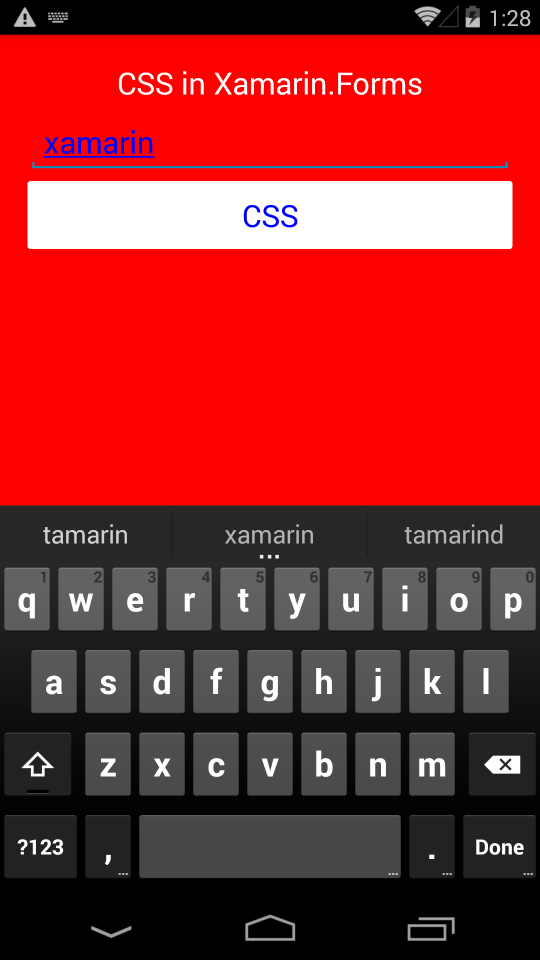
We can use directly page, view, class or id like css
^ContentPage
{
    background-color: red;
}
.header {
    color: white;
    font-size: large;
    text-align: center;
    margin: 20;
}
entry{
    color:blue;
    text-align:left;
    padding:10;
}
#myButton{
    background-color:white;
    color:blue;
}
    <StackLayout StyleClass="header">
        <Label Text="CSS in Xamarin.Forms" />
        <Entry />
        <Button StyleId="myButton" Text="CSS" />
    </StackLayout>
Alternatively, the style sheet can be loaded and parsed with the StyleSheet class by inlining it in a CDATA section
<ContentPage.Resources>
        <StyleSheet>
            <![CDATA[ ^contentpage { background-color: red; } ]]>
        </StyleSheet>
    </ContentPage.Resources>
How to set in back-end
Resources.Add(StyleSheet.FromAssemblyResource(IntrospectionExtensions.GetTypeInfo(typeof(MainPage)).Assembly,"XFCSS.Styles.styles.css"));
Alternatively, the style sheet can be loaded from a StringReader and added to the ResourceDictionary for the page
using (var reader = new StringReader("^contentpage { background-color: red; }"))
{
this.Resources.Add(StyleSheet.FromReader(reader));
}
Yes, you can load all style sheets via web services 🙂

Post A Reply